Guide
New here? Make your first character
 GameAIfy Team
 2 min
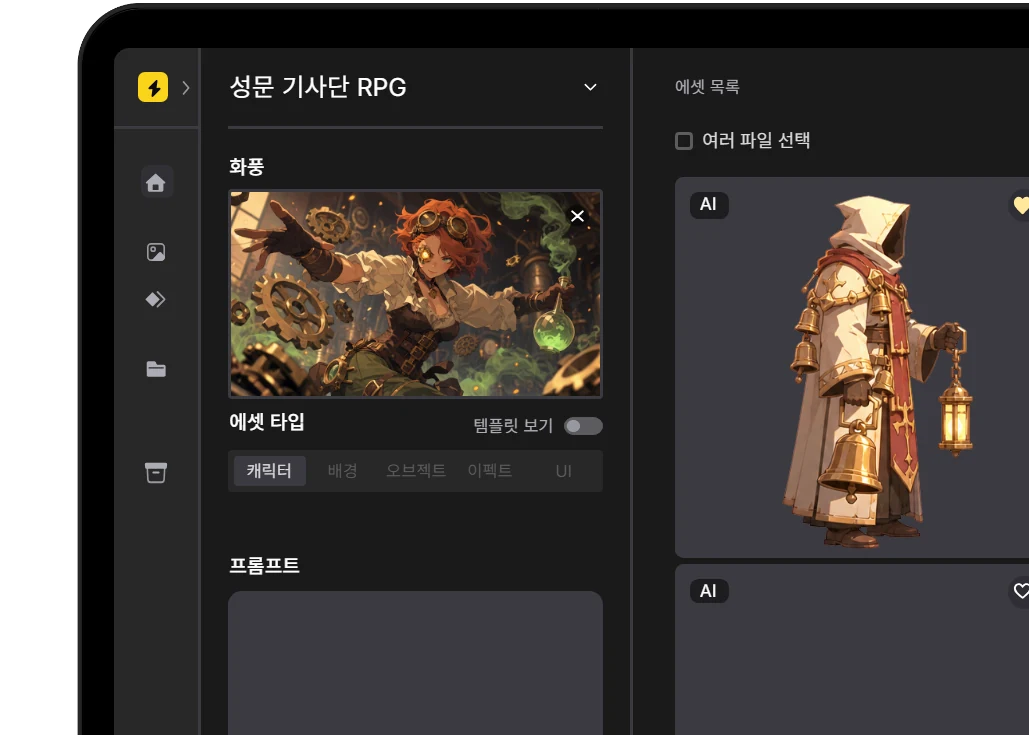
In the Editor, click a preset and the Style Reference, template, prompt, and model fields in the sidebar fill in automatically. Edit the prompt, then click the Generate button at the bottom, and your first character appears in the asset list on the right.
New here? Make your first character
GameAIfy Team2 minIn the Editor, click a preset and the Style Reference, template, prompt, and model fields in the sidebar fill in automatically. Edit the prompt, then click the Generate button at the bottom, and your first character appears in the asset list on the right.
When you need this
- When you have just entered the Editor and don't know what to click first
- When you want to start from a preset before setting the Style Reference, template, model, and prompt one by one
- When you want to start with the Character asset type and try making one image
Good to know first
A Preset is an example shown only when the asset list is empty. Click one and the Style Reference, template, model, and prompt fill in the sidebar.
An image reference is an image you add for reference when you generate assets with AI.
Steps
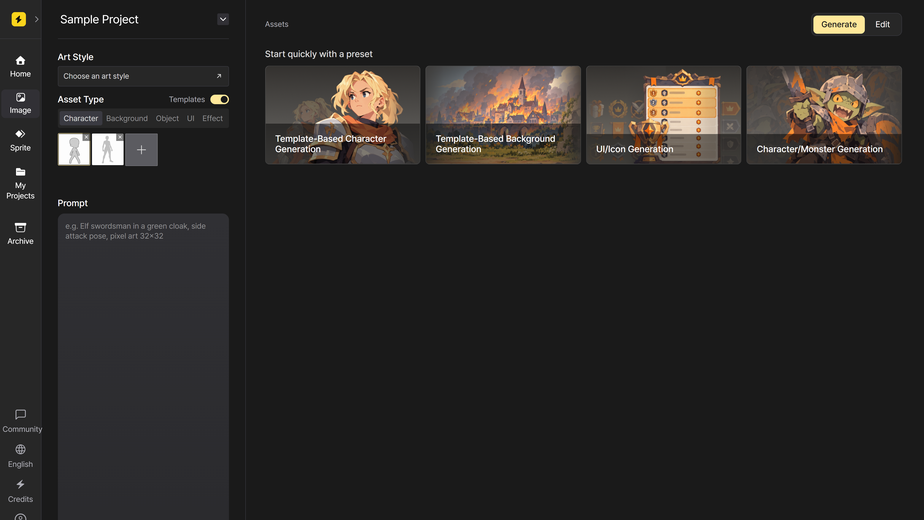
Open the Editor
Enter the Editor from Home or from [Image] in the left menu.
※ You can also enter from [Start creating] on the project details page.
Choose a preset
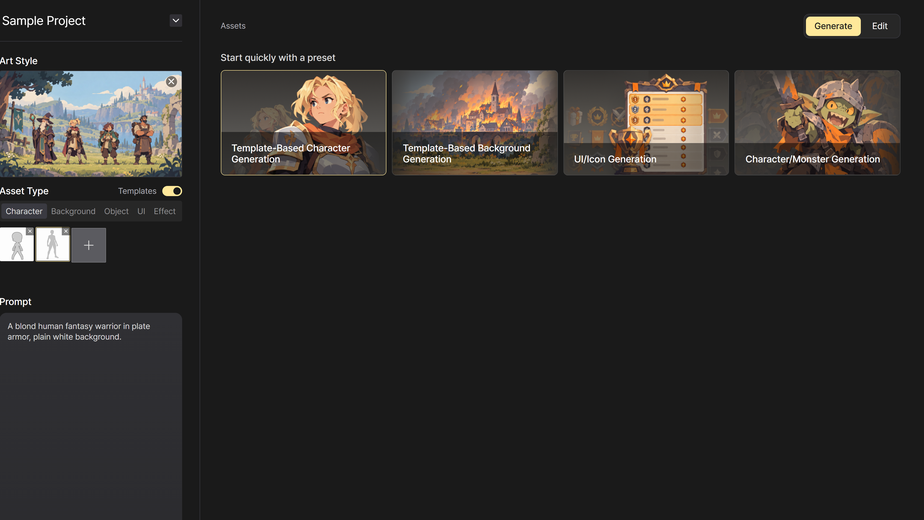
When the asset list is empty, 4 presets appear.
Click a preset and the Style Reference, template, prompt, and model in the left sidebar fill in automatically.
Choose a Style Reference
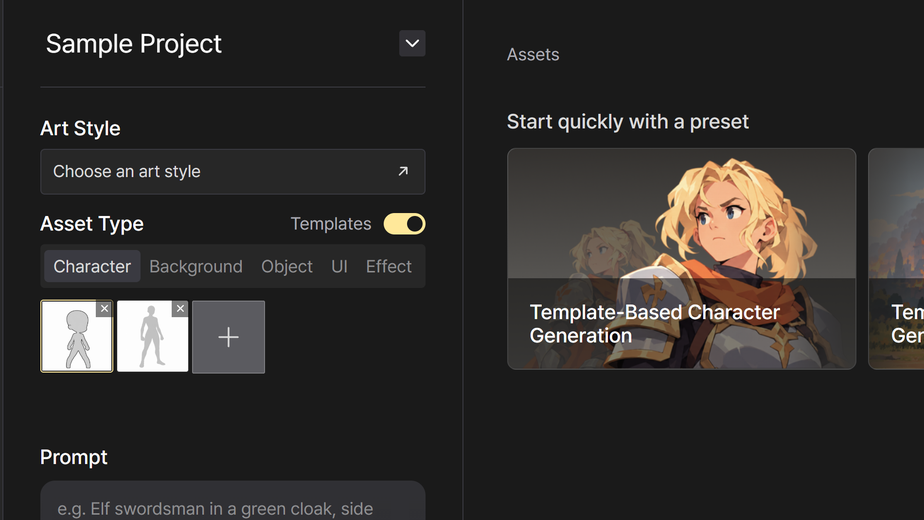
To use a different art style, click [Choose an art style] in the "Art Style" field.
In the "Choose an art style" popup, pick one and click [Load].
※ You can generate without choosing an art style.
Choose an asset type
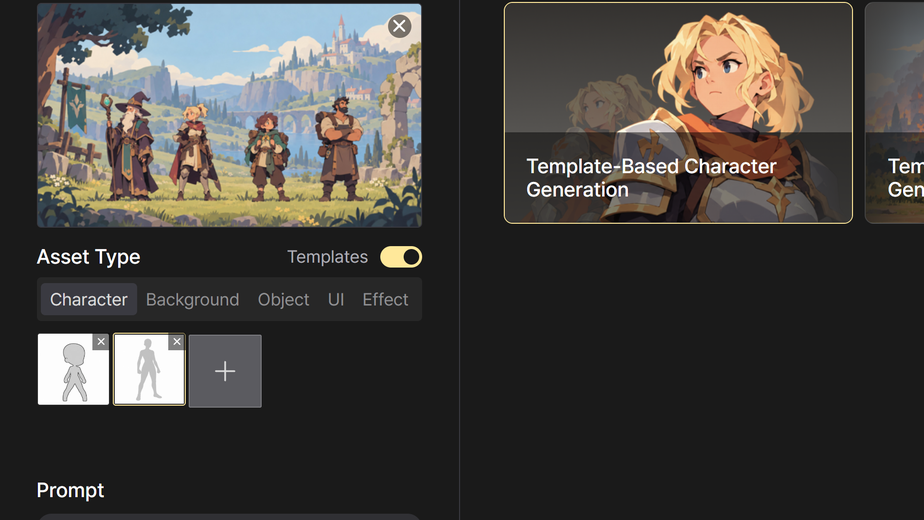
Choose the asset type from Character, Background, Object, Effect, and UI. The default is Character.
If you don't choose a template image, the first image is selected automatically.
Write a prompt
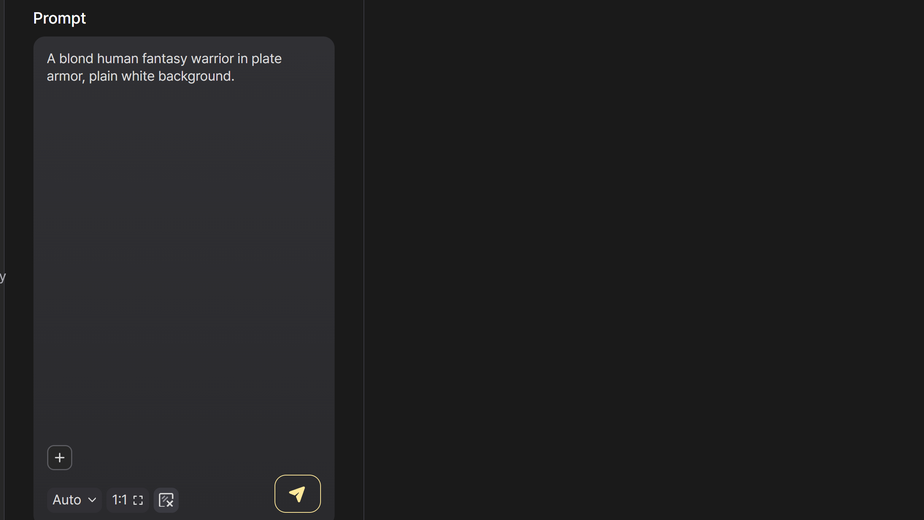
Picture the character you want to make and write a prompt.
※ The prompt does not have to be in English. Write in whatever language you are comfortable with.
If you have an image to refer to, click the [+] button to attach it as an image reference.
You can also drag and drop an image into the prompt field to add it as an image reference.
Generate
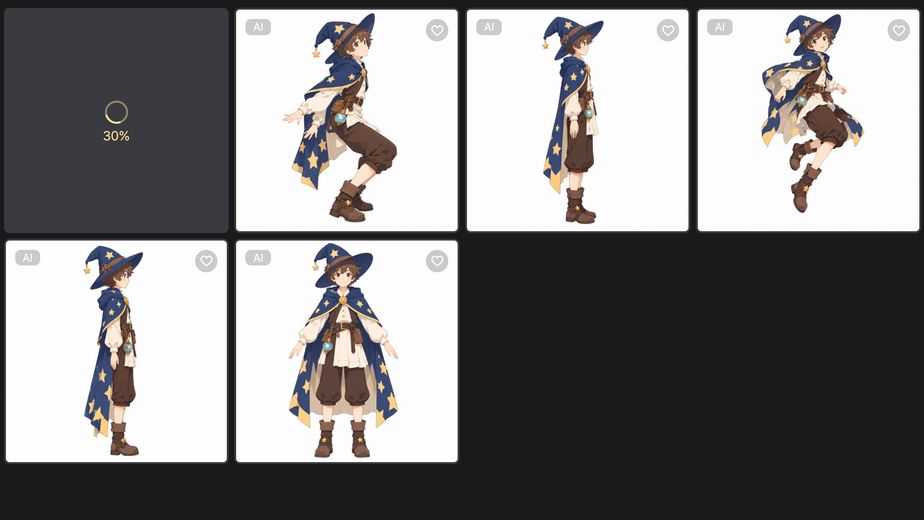
Click the [Generate] button at the bottom of the prompt field, or press Ctrl + Enter.
You can see the image asset being generated in the asset list on the right.
Things to check
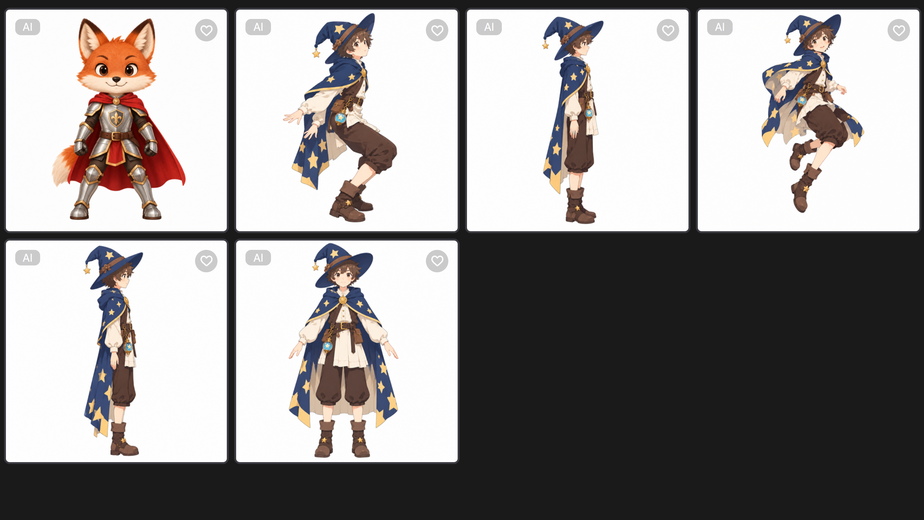
- Each click of the [Generate] button makes one image asset.
- If the prompt is empty, you cannot click the [Generate] button.
- Templates are not yet available for the UI and Effect asset types. They will be added later.
Frequently asked questions
Q. If I add several image references, do I get several results?
A. No. Even if you add several image references, you get one result that combines them into a single subject.