Guide
Two ways to create a Style Reference
 GameAIfy Team
 2 min
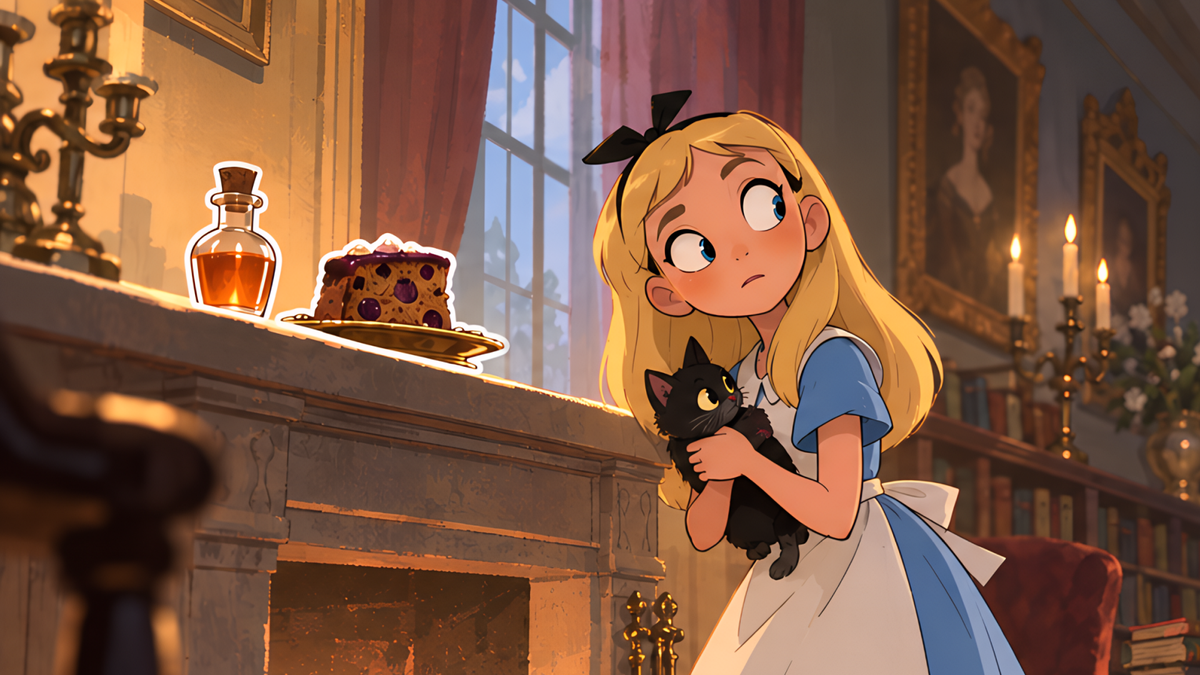
If you are not sure which art style to use, start with a one-line game idea and choose from examples. If you already have an art style image to reference, you can turn it into a Style Reference right away.
Two ways to create a Style Reference
GameAIfy Team2 minIf you are not sure which art style to use, start with a one-line game idea and choose from examples. If you already have an art style image to reference, you can turn it into a Style Reference right away.
Good to know first
A Style Reference is an image that keeps the art style consistent across the game assets you make from now on.
There are two ways to create a Style Reference.
- If you are not sure which art style to use, follow Method 1.
- If the art style you want is clear and you have an image to reference, follow Method 2.
Method 1. Create one from a one-line game idea
Use this method when you are still deciding which art style to use.
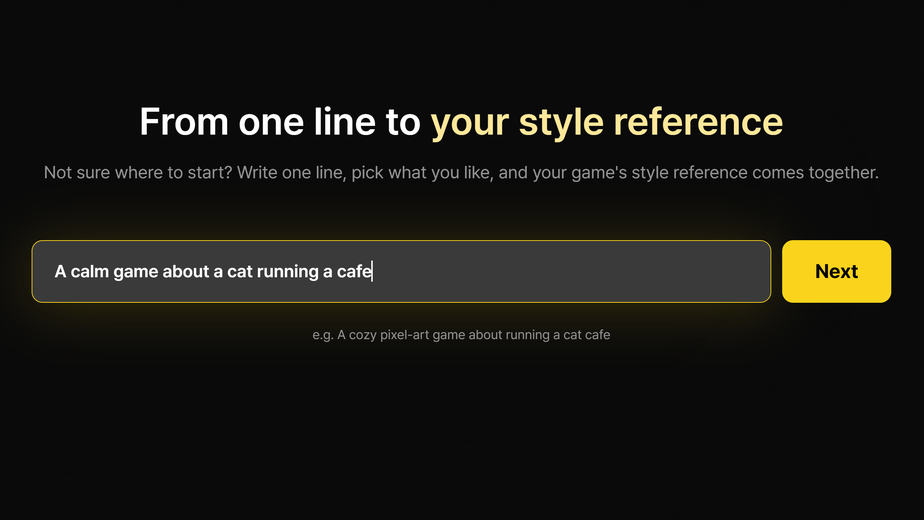
Start with one line
On the main screen, click [Get started] on the Create your own style reference banner.
Write the idea for the game you want to make in one line and click [Next].
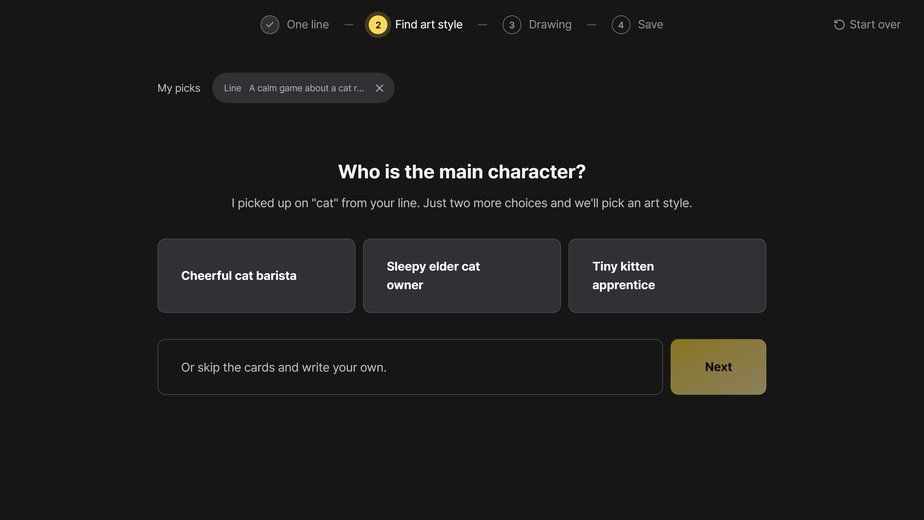
Answer two questions
Answer "Who is the main character?" and "Where does the story take place?" in order.
For each question, choose one option or write your own, and click [Next].
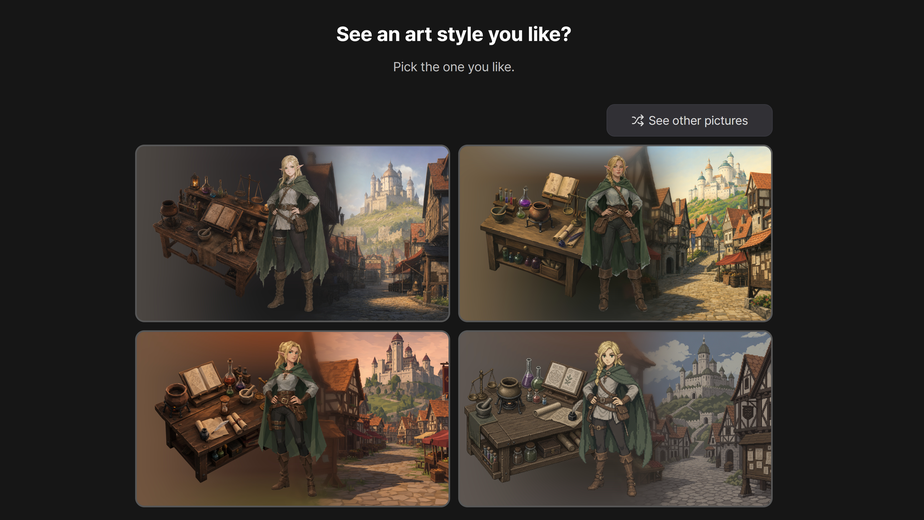
Choose an example
Art style examples appear with the question "See an art style you like?"
Click an example you like to start creating a Style Reference based on that image.
If you do not see an example you like, click [See other pictures].
To use an image you have instead of an example, click the [Upload your own] button at the bottom of the screen and upload it.
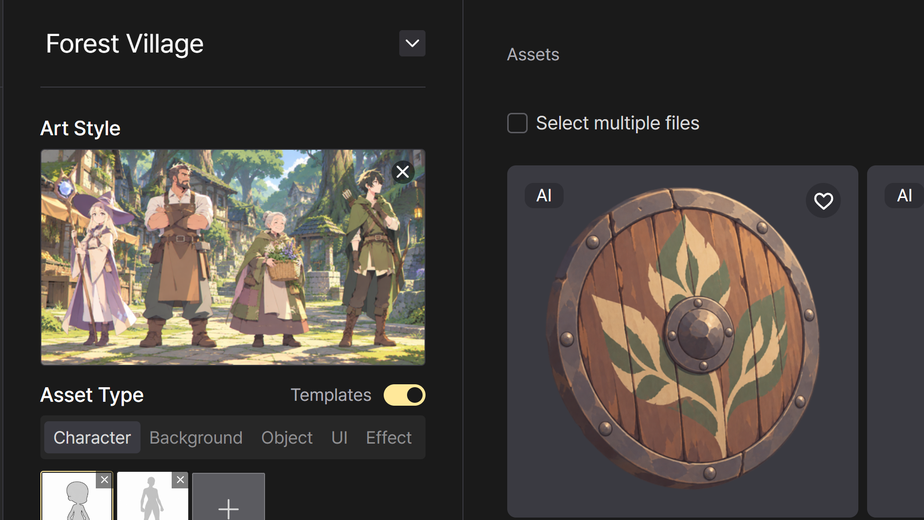
Continue in the Editor
When it is done, it is saved automatically with the message "Saved."
Click [Continue], and the Editor opens with the Style Reference you made applied in the "Art Style" field.
Method 2. Create one from my image
Use this method when the art style you want is clear and you have an image to reference.
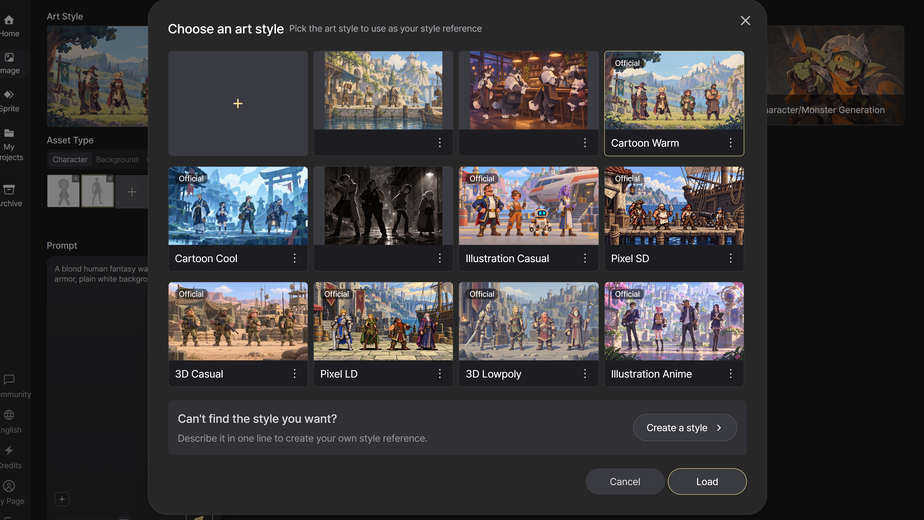
Open Choose an art style
Click [Choose an art style] on the left side of the Editor to open the "Choose an art style" popup.
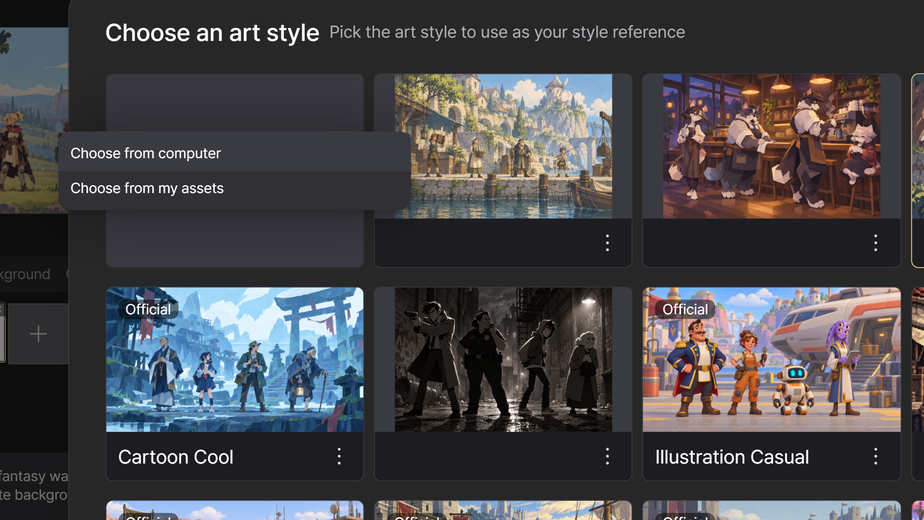
Upload my image
Click the [+] card ("Create a style from my image") at the front of the popup list, then choose where to get the reference image from in the menu.
[Choose from computer]: Upload an image from my computer.
[Choose from my assets]: Choose one image from my assets saved in GameAIfy.
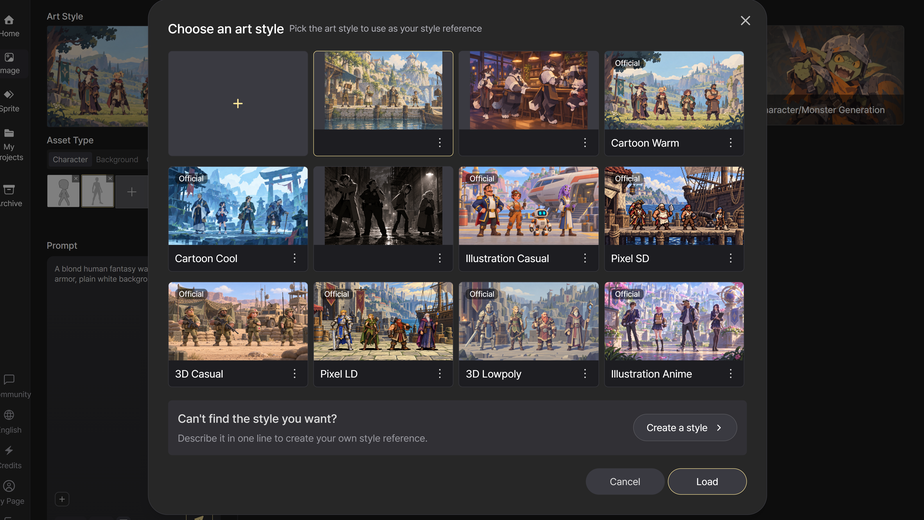
Load the style you made
While it is being made, the card shows "Converting image". When it is done, the new style appears at the front of the list.
Choose the new style and click [Load], and it is applied to the "Art Style" field in the Editor.
Things to check
- A Style Reference made from a one-line game idea has no remake option after the result appears. To change it, click [Start over] at the top right and go through the steps from the beginning.
- Styles from my image are created one at a time. Animated images cannot be used.
Frequently asked questions
Q. Does it cost anything to create a Style Reference?
A. No. Creating a Style Reference costs nothing with either method.
Q. What kind of image works well when I create one from my image?
A. We recommend an image that shows the art style clearly, such as one with both a character and a background.