Guide
When you want to make multiple game assets in a consistent art style
 GameAIfy Team
 2 min

Apply one Style Reference in the "Art Style" field of the Editor, and you can make many image assets in the same art style even when you change the asset type and prompt.
When you want to make multiple game assets in a consistent art style
GameAIfy Team2 minApply one Style Reference in the "Art Style" field of the Editor, and you can make many image assets in the same art style even when you change the asset type and prompt.
When you need this
- When you want to keep making assets with a Style Reference you created
- When you want characters, backgrounds, and objects to match in the same art style
- When you want to use an art style from another project as it is
Good to know first
A Style Reference is an image that keeps the art style consistent across the game assets you make from now on.
An asset type is the kind of asset you make, such as Character, Background, Object, UI, or Effect.
Steps
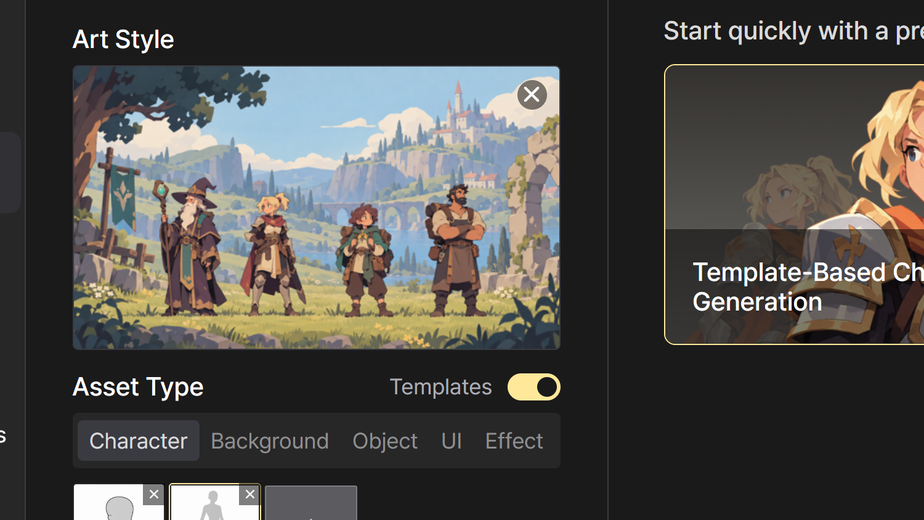
Check the applied Style Reference
Check the currently applied Style Reference in the "Art Style" field at the top left of the Editor.
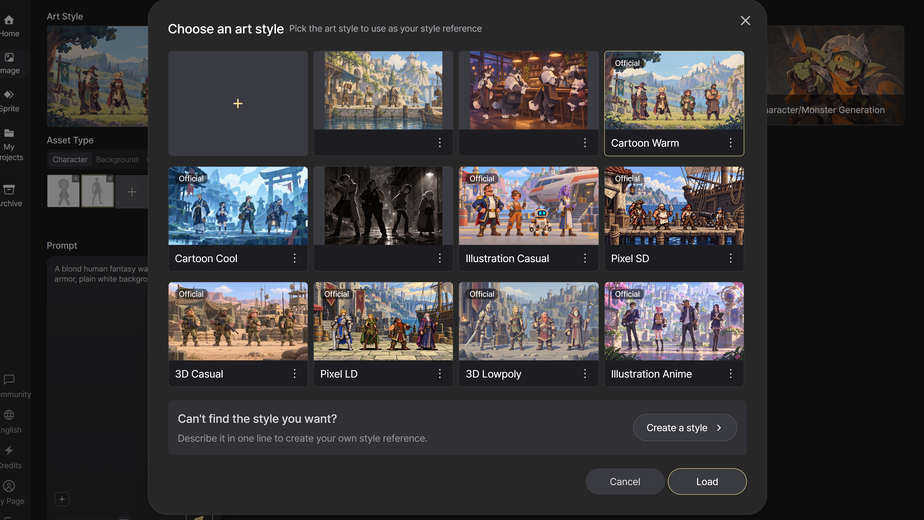
Choose a Style Reference
If no art style is applied, click [Choose an art style] to open the "Choose an art style" popup.
If an art style is already applied, click the art style image in the "Art Style" field.
Style References you created and Style References provided by GameAIfy (marked "Official") appear in one list.
Pick one and click [Load], and it is applied to the "Art Style" field.
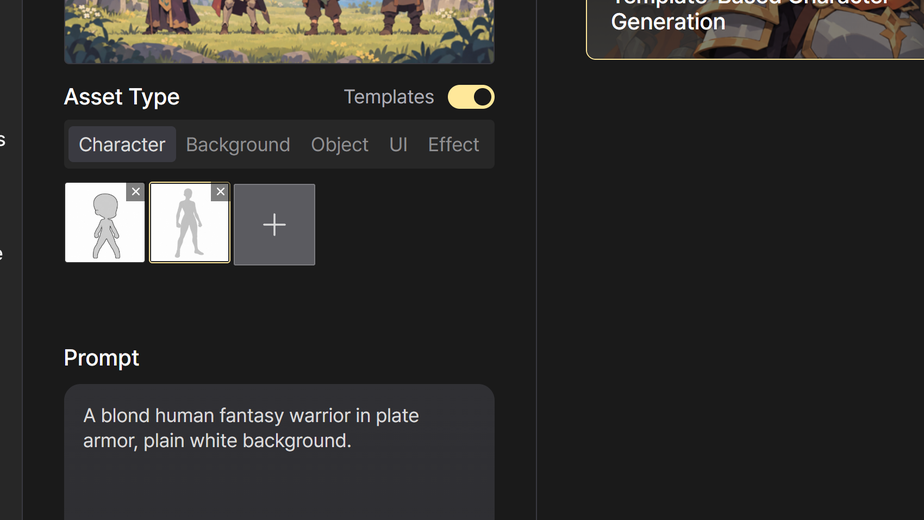
Use the Style Reference freely
Keep the Style Reference applied and change only the asset type and prompt to make many images.
Choose the asset type from Character, Background, Object, UI, and Effect.
More information
Use it in another project
- Style References are saved to your account, not to a project.
- You can choose a Style Reference you made before in other projects, too.
Stop applying the Style Reference
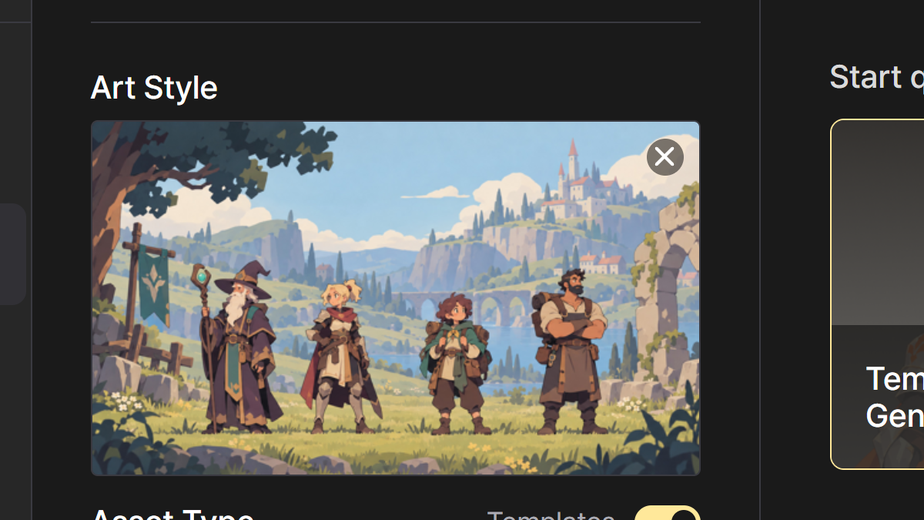
- Click [Remove art style] in the "Art Style" field. The Style Reference stops being applied right away, without confirmation.
- After you stop applying the Style Reference, you can still find it in the popup list.
Things to check
- When you delete a Style Reference you created, it is deleted right away.
Frequently asked questions
Q. Can I apply several Style References together?
A. No. You can apply only one at a time.
Q. If I stop applying the Style Reference, is it deleted too?
A. No. You can find it again in the "Choose an art style" popup list.